Undo/Redo Feature in Svelte 5
In this Svelte guide, we will be tackling the classic “Circle Drawer” challenge from the 7 GUIs benchmark. We’ll focus on drawing circles and implementing undo/redo—but skip the diameter editing to keep things simple.
Here’s what we’ll build:
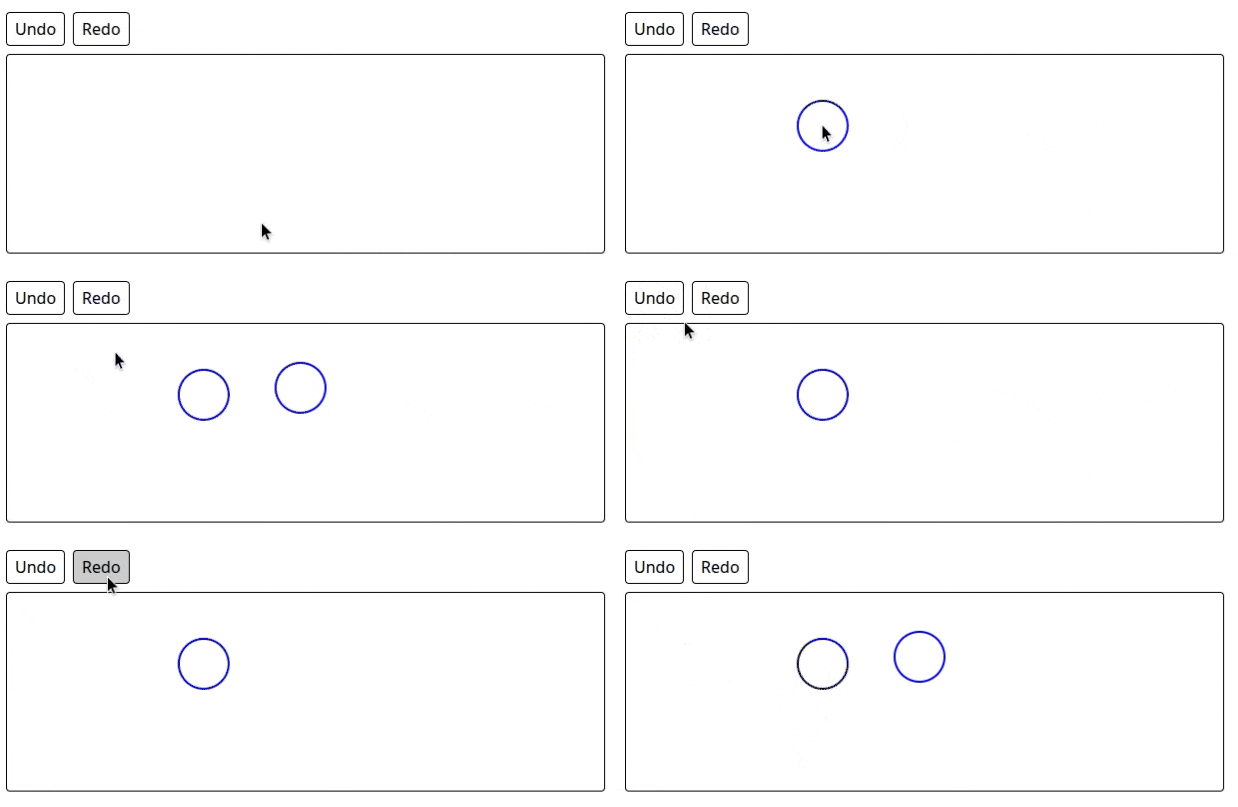
Our app will let users:
- Click to draw circles
- Undo and redo every action
Let’s break it down and build it up.
Getting Started
I’ve set up a StackBlitz starter project so you can start coding right away. Just sign in with GitHub and you’re good to go.
Alternatively you can set up a local project on your machine.
I’m using Tailwind CSS for styles, but you can use anything you’re comfortable with.
Step 1: Defining Our Circle Type
Before we touch any UI, we need to define what kind of data our app is dealing with. Since we’re using TypeScript, we’ll define a type for our circles.
Each circle will have:
- A unique
id - An
xandycoordinate - A fixed
r(radius) — we’ll set it to 25 by default
File: src/lib/types.ts
export type Circle = {

	id: number;

	x: number;

	y: number;

	r: number;

};
Step 2: Storing Circles in State
Now we need somewhere to keep track of our drawn circles. We’ll the $state rune which will give us a reactive local state which we will use to store our circles and render it to the UI.
File: src/routes/+page.svelte
<script lang="ts">

	import type { Circle } from '$lib/types';

	let circles = $state<Circle[]>([]);

</script>
We’ll update this later to plug in a history mechanism, but this is a good starting point.
Step 3: Drawing on an SVG Canvas
We’ll use <svg> to render our circles. SVG is perfect for this challenge because it treats every shape as a DOM node, which makes it super easy to update or delete.
<svg width="600" height="200">

	{#each circles as circle (circle.id)}

		<circle

		cx={circle.x}

		cy={circle.y}

		r={circle.r}

		stroke="blue"

		stroke-width="2"

		fill="transparent"

	/>

	{/each}

</svg>
Svelte’s {#each} block will update the DOM automatically whenever the circles array changes.
Step 4: Drawing Circles on Click
Right now, our app shows an empty canvas. Let’s make it respond to clicks by drawing a circle where the user clicks.
But here’s the catch: click events give us clientX and clientY, which are relative to the window, not the SVG. So we’ll grab the bounding box of the <svg> to offset the click coordinates properly.
We also use bind:this to reference the DOM node directly.
<script lang="ts">

	import type { Circle } from '$lib/types';

	let svgElement: SVGSVGElement;

	let circles = $state<Circle[]>([]);

	function handleClick(event: MouseEvent) {

		const svgRect = svgElement.getBoundingClientRect();

		const x = event.clientX - svgRect.left;

		const y = event.clientY - svgRect.top;

		const newCircle: Circle = {

			id: Date.now(),

			x,

			y,

			r: 25

		};

		circles.push(newCircle);

	}

</script>

<svg bind:this={svgElement} on:click={handleClick} width="600" height="200">

	{#each circles as circle (circle.id)}

		<circle cx={circle.x} cy={circle.y} r={circle.r} stroke="blue" stroke-width="2" fill="transparent" />

	{/each}

</svg>
Now every time you click the canvas, a circle should appear right under your cursor.
Step 5: Undo/Redo
Let’s add full undo/redo support. We’ll build a tiny state history engine that stores snapshots of the circles array. Each time the user draws a circle, it creates a new version. The user can then go back and forth in time like to access the circles.
File: src/lib/history.svelte.ts
export function createHistory<T>(initialValue: T) {

	const history = $state<T[]>([initialValue]);

	let index = $state(0);

	const current = $derived(history[index]);

	const canUndo = $derived(index > 0);

	const canRedo = $derived(index < history.length - 1);

	function update(newValue: T) {

		// Cut off any "redo" history when updating

		history.length = index + 1;

		history.push(newValue);

		index = history.length - 1;

	}

	function undo() {

		if (canUndo) index--;

	}

	function redo() {

		if (canRedo) index++;

	}

	return {

		get current() { return current; },

		get canUndo() { return canUndo; },

		get canRedo() { return canRedo; },

		update,

		undo,

		redo

	};

}

This generic helper works with any type of state, not just circles.
Step 6: Wiring It All Together
Now we’ll plug our history engine into the page. Instead of directly mutating circles, we’ll call circleHistory.update() every time we want to make a change. This gives us full control over the timeline.
<script lang="ts">

	import type { Circle } from '$lib/types';

	import { createHistory } from '$lib/history.svelte.ts';

	const circleHistory = createHistory<Circle[]>([]);

	let svgElement: SVGSVGElement;

	function handleClick(event: MouseEvent) {

		const svgRect = svgElement.getBoundingClientRect();

		const x = event.clientX - svgRect.left;

		const y = event.clientY - svgRect.top;

		const newCircle: Circle = {

			id: Date.now(),

			x,

			y,

			r: 25

		};

		const newCircles = [...circleHistory.current, newCircle];

		circleHistory.update(newCircles);

	}

</script>
We will also wire up our buttons and the {#each} block to our new state.
<button on:click={circleHistory.undo} disabled={!circleHistory.canUndo}>Undo</button>

<button on:click={circleHistory.redo} disabled={!circleHistory.canRedo}>Redo</button>

<svg bind:this={svgElement} on:click={handleClick} width="600" height="200">

	{#each circleHistory.current as circle (circle.id)}

		<circle cx={circle.x} cy={circle.y} r={circle.r} stroke="blue" stroke-width="2" fill="transparent" />

	{/each}

</svg>
And there we have it! A fully functional, reactive Circle Drawer with a robust undo/redo system. You can click a bunch of times, undo all the way back to zero, and redo them one by one.
Wrap-up
What we built:
- Draw circles with a click
- View all circles with SVG
- Undo and redo any action
- Fully reactive state with Svelte 5 runes
If you want to go further, you could:
- Add diameter editing as per the challenge
- Add keyboard shortcuts for undo/redo
Thanks for following along!
This article is also published on dev.to